Wild Apricot Application Authorization
Wild Apricot authenticates client applications such as meetup2apricot with OAuth2. The client application, meetup2apricot, needs an API key. When a Wild Apricot administrator adds or edits an authorized application, Wild Apricot reveals the API key as described in Authorizing External Applications. Experienced Wild Apricot administrators can follow this outline:
Authorize a new server application.
Name the application.
Copy the API key into the meetup2apricot configuration file
Save the new authorized application.
Authorize an Application in Wild Apricot
In the Wild Apricot web administration settings, view authorized applications as shown in Figure 5.
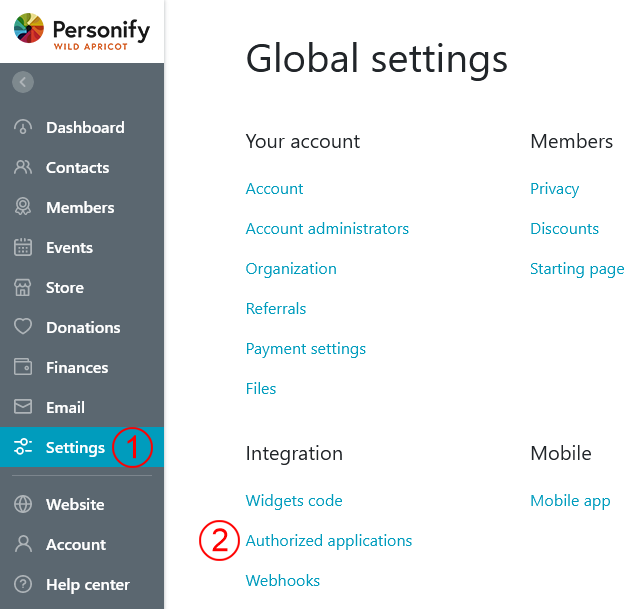
Figure 5. Click Settings (1) in the administration menu to display a settings menu. Click Authorized (2) applications to display the list of authorized applications.
Confirm that meetup2apricot is not among the authorized applications.
Start the authorization process as shown in
Figure 6.
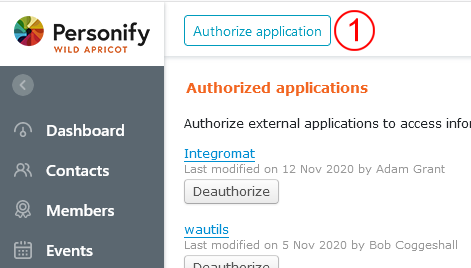
Figure 6. Click Authorized application (1) to begin the authorization process.
Select the server application type, which is appropriate for meetup2apricot, as shown in Figure 7.
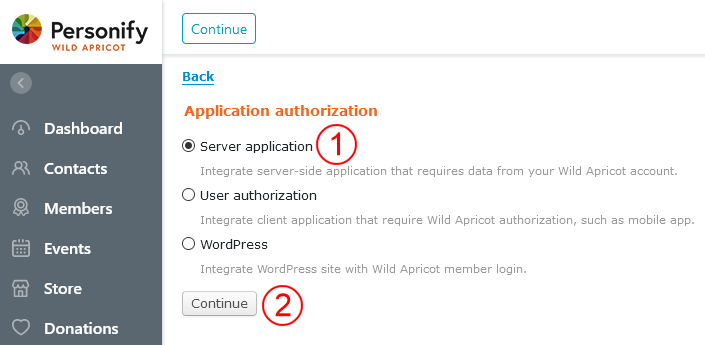
Figure 7. Select Server application (1), the authorization needed for meetup2apricot. Click Continue (2) to advance to the next form.
Fill in the application details form as shown in Figure 8. Copy the API key for the meetup2apricot configuration file. Save the new authorized application.

Figure 8. Enter an application name (1). Copy the API key (2). Select Full access (3) to allow meetup2apricot to add and change events. Click Save (4) to save the application authorization.
Configure the API Key
Save the API key copied from the application details in meetup2apricot
configuration environment variable APRICOT_API_KEY as described in
the configuration guide.
The API key copied from Figure 8 would
appear as follows in the environment configuration file:
# Wild Apricot API key
export APRICOT_API_KEY='vpxda1mz3y3vj58ryqtuqrt33q2ed0'